RITORNO WALLET INSTRUCTION MANUAL
Key Features
- Smart Finder
- Uses Apple Find My App to locate your device
- Locate from iPhone, iPad, iPod Touch or Mac computer
- Rechargeable
Safety Instructions
- Keep the unit away from heat sources, direct sunlight, water and any other liquids.
- Do not operate the unit if it has been exposed to water, moisture or any other liquids to prevent damage to the unit.
- Do not use the unit if it has been dropped or damaged in any way.
- Repairs to electrical equipment should only be performed by a qualified electrician. Improper repairs may place the user at serious risk.
- Do not use this unit for anything other than its intended use.
- Keep the unit out of reach of children.
- This appliance is not a toy.
- Batteries (battery pack or batteries installed) shall not be exposed to excessive heat place, such as sunshine, fire or the like.
Specifications
- Polymer Battery Capacity: 130 MAH
- Charging Time: 1.5 hours
- Working Time: 6 months
- Volume: 80DB
- Charging: Wireless Charging
- Net weight: 75.2 g
- App Name: Find My
Battery Rechargeable
When battery is drained, charge it with any wireless charger that meets the Ql standard.
- Smart Finder includes a built-in rechargeable 130MAH Lithium
Polymer battery. - The LED light in red when charging, change to green light when fully charged.
Instructions for Use

Switch on/off the unit
- Switch on: Short press the Power button once and you'd hear a ring chime, indicating it is powered on and will be in pairing status.
- Switch off: Long press the Power button for three seconds, it should beep twice, indicating it is powered off.
Add your Smart Finder to the Find My App
- Open "Find My" App on your supported iPhone, iPad, iPod Touch or Mac computer.
- Allow notifications from the App.
- Select "Items" at the bottom, then tap "Add Other Item" or tap on "+" icon directly.
- Select "Other Supported Items"
- Make sure your Smart Finder is close to your phone. It will pop-up "Searching Items.
- You will see pop-up "Tagit Finder", then tap"Connect"
- Follow the pop-up to fill name, and select an emoji, then tap"Continue"
- When "This Item Is Linked to Your Apple ID" pops-up, tap "Agree"
- Tap "Finish" to finish your Smart Finder set-up.
Lost Mode
• When your Smart Finder is lost under "Lost Mode", tap the "Enable" tab, a screen calling Lost Mode will pop up, tab "Continue". You can enter your phone number or email address and tap "Next".
- You may enter a message that will be shared with the person that finds your Smart Finder.
- Tap "Activate" to enable "Lost Mode".
Note:
- When "Lost Mode" is enabled, "Notification When Found" is automatically enabled.
- When "Lost Mode" is enabled, your Smart Finder is locked and cannot be paired to a new device.
Rename Item
• Name of the Smart Finder can be renamed.
Remove Item
• Make sure "Lost Mode" is disabled and click
"Remove Item". After selecting the option, the system will pop up "Remove Item?" and click
"Remove" to remove the device.
- The Smart Finder is now reset and ready to pair to a new device.
Share This Item
- Tap"Add Person"to share this Item
- Tap"Continue"and select relatedpeople to share.
- Tap"Share"and wait for related people to confirm your invitation.
Others also can located this item. Andtracking notification will be muted.
*Available for iOS 17 above version.
System Requirements and Compatibility
- Apple ID
- iPhone models with iOS 14.5 or later.
- iPad models with iPad iOS 14.5 or later.
About the Find My App
The Apple Find My network provides an easy, secure way to locate the item using the Find My app on your iPhone, iPad, Mac, or the Find Items app on Apple Watch.
To use the Apple Find My app to locate this item, the latest version of iOs, iPad iOS, or mac iOS is recommended. The Find Items app on Apple Watch requires thelatest version of watch ioS.
Learn More
- This item can be located by its owner using the Find my app. For more information, follow the instructions below.
- Locate the button on the top of the device.
- Press the button twice. You will hear a confirmation sound.
- Tap "Continue On Website" for more information including any Lost Mode message from the owner.
How to Disable
- Locate the button on the top of the device.
- Long press the function button three seconds until two beeps are heard. This will stop sharing the location of this Smart Finder.
Factory Reset
- Press the button 4 times rapidly and then hold it a fifth time until you hear a ringing chime.
- A reset operation is required to enable the device to enter the pairing state again (synchronization of Find My also requires simultaneous unbinding) and rebind the new Apple ID account.
How can I prevent my device from being used for malicious tracking
When someone else's device mixes with your belongings, and tracks it over a period of time, you will be reminded in below two ways:
- If you have an iPhone, iPad, or iPod touch etc Apple device, you will get alerts on your Apple device. This feature is available on ios or iPadOS 14.5 version or above.
- If someone else's device finds its way into your stuff, your iPhone will notice it is traveling with you and send you an alert. After a while, if you still have not find it, the Smart Finder will start playing a sound to let you know where it is.
Important tips:
When pairing a device with Find My app, the phone will link to the Apple server. Pairing may fail because of network problems. The following action is recommended.
- Change the phone's network, such as switching between Wi-Fi and mobile. The first pairing may take a long time, please wait patiently.
- Reset your Smart Finder.
- When "Lost Mode" is enabled, DO NOT REMOVE ITEM in the APP.
Your Find My Mini Flashlight will be locked and cannot be paired to a new device.
Use of the Works with Apple badge means that a product has been designed to work specifically with the technology identified in the badge and has been certified by the product manufacturer to meet Apple Find My network product specifications and requirements.
Apple is not responsible for the operation of this device or use of this product or its compliance with safety and regulatory standards.
Apple, Apple Find My, Apple Watch, Find My, iPhone, iPad, iPadoS, Mac, macOS and watchOS are the trademarks of Apple Inc. IOS is a trademark or registered trademark of Cisco in the U.S. and other countries and is used under license.
Care and maintenance
Read the following recommendations before using the unit. Following these you will be able to enjoy the product for many years.
- Don't expose the unit to liquid, moisture or humidity to avoid the product's internal circuit being affected.
- Don't use abrasive cleaning solvents to clean the unit.
- Don't expose the unit to extremely high or low temperature as this will shorten the life of electronic devices, destroy the battery or distort certain plastic parts.
- Don't dispose of the unit in fire as it will result in an explosion.
- Don't expose the unit to contact with sharp objects as this will cause scratches and damage.
- Don't let the unit fall down onto the floor. The internal circuit might get damaged.
- Don't attempt to disassemble the unit as it may get damaged if you are not professional.
FCC Instructions
Caution: Changes or modifications not expressly approved by the party responsible for compliance could void the user's authority to operate the product.
NOTE: This product has been tested and found to comply with the limits for a Class B digital device, pursuant to Part 15 of the FCC Rules. These limits are designed to provide reasonable protection against harmful interference in a residential installation. This product generates, uses and can radiate radio frequency energy and, if not installed and used in accordance with the instructions, may cause harmful interference to radio communications. However, there is no guarantee that interference will not occur in a particular installation.
If the product does cause harmful interference to radio or television reception, which can be determined by turning the equipment off and on, the user is encouraged to try to correct the interference by one or more of the following measures:
- Reorient or relocate the receiving antenna.
- Increase the separation between the product and receiver.
- Connect the product into an outlet on a circuit different from that to which the receiver is connected.
- Consult the dealer or an experienced radio/TV technician for help.
- This device complies with part 15 of the FCC Rules.
- Operation is subject to thefollowing two conditions:
(1) This device may not cause harmful interference, and (2) this device must accept any interference received, including interferencethat may cause undesired operation.
Any changes or modifications not expressly approved by the party responsiblefor compliance could void the user's authority to operate the equipment.
The device has been evaluated to meet general RF exposure without restriction.
requirement. Thedevice can be used in portable exposure condition
FCC ID: 2A6W7-BL015V
iPhone 17 & 18 Series
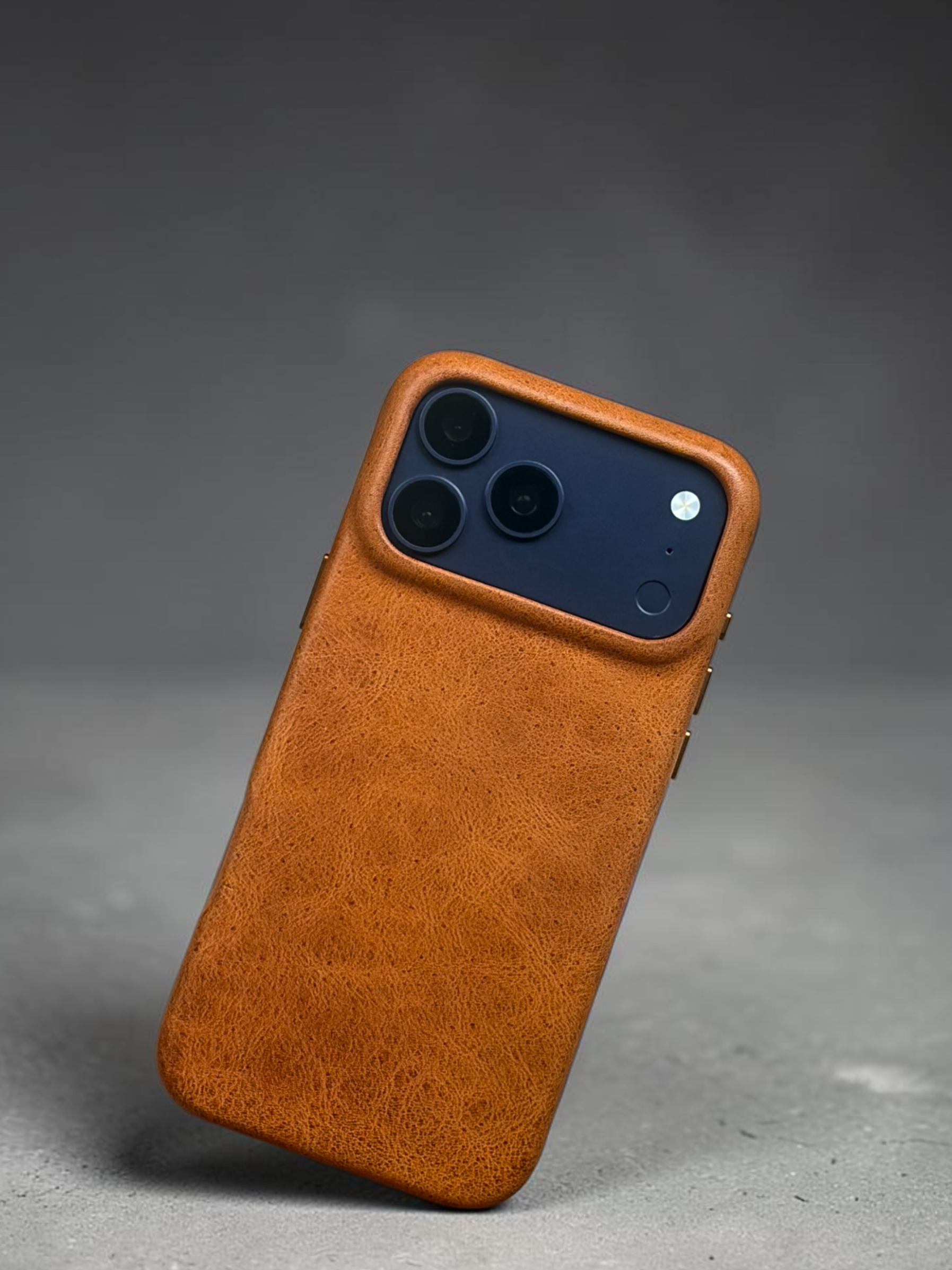
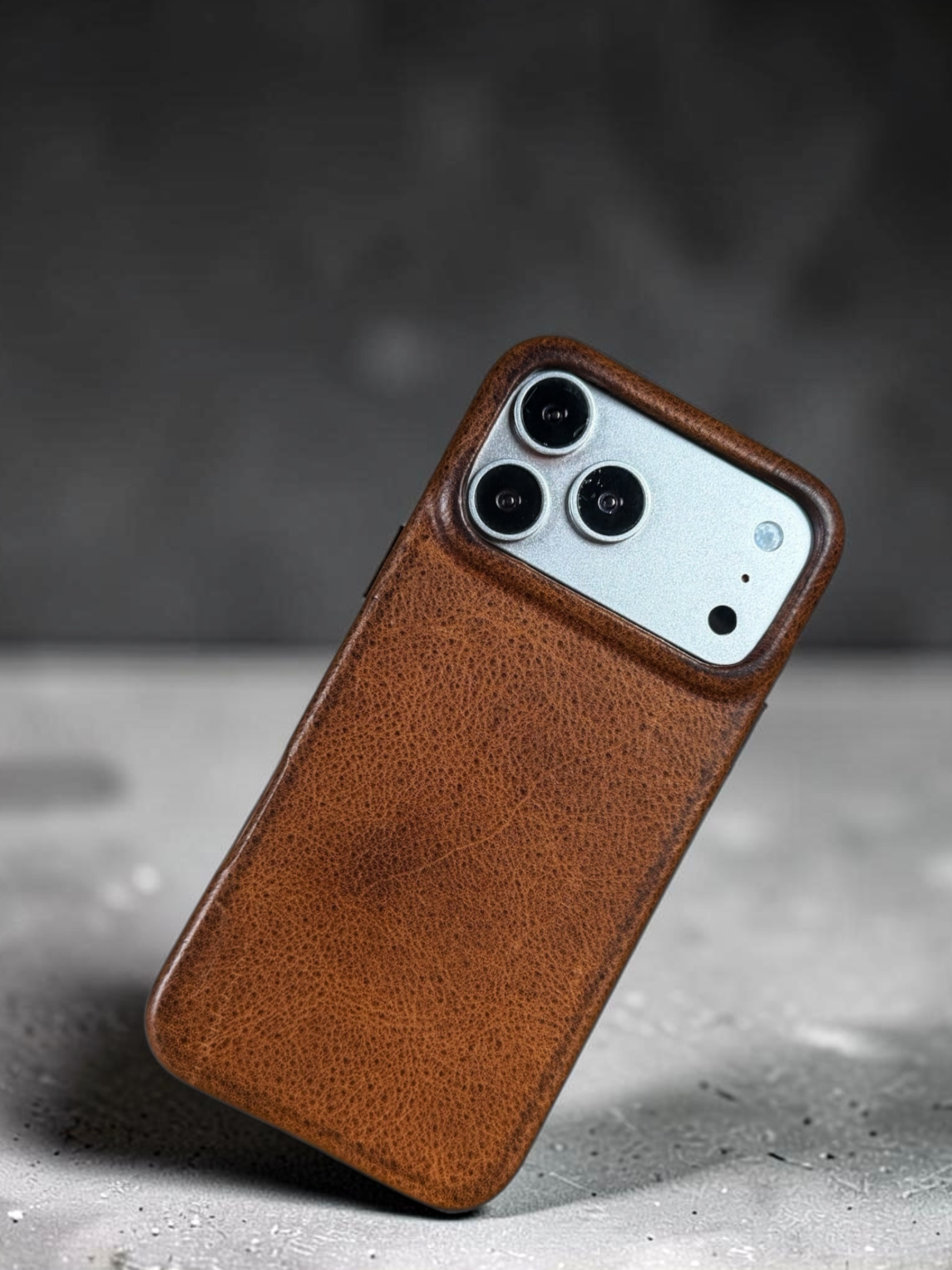
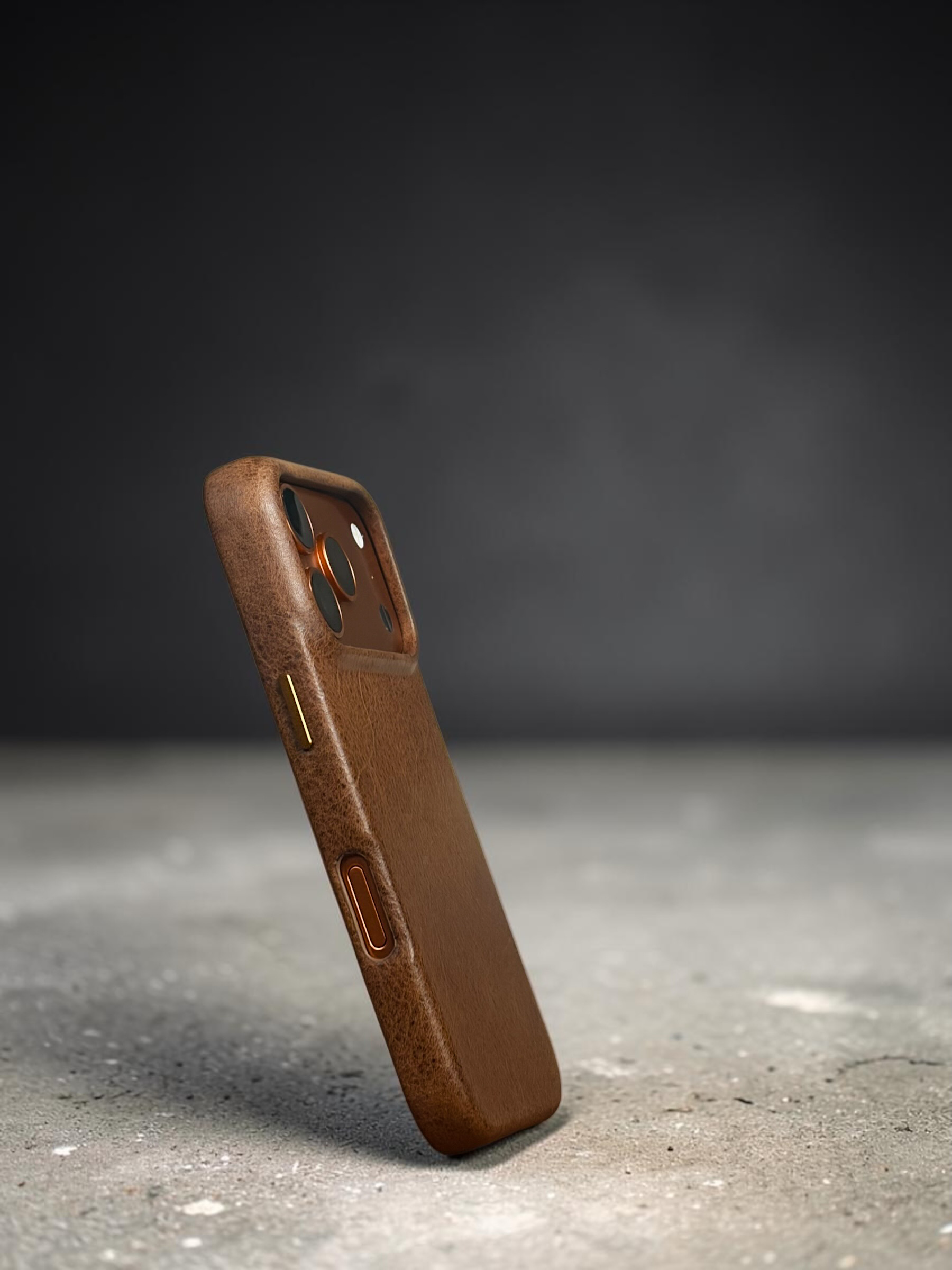
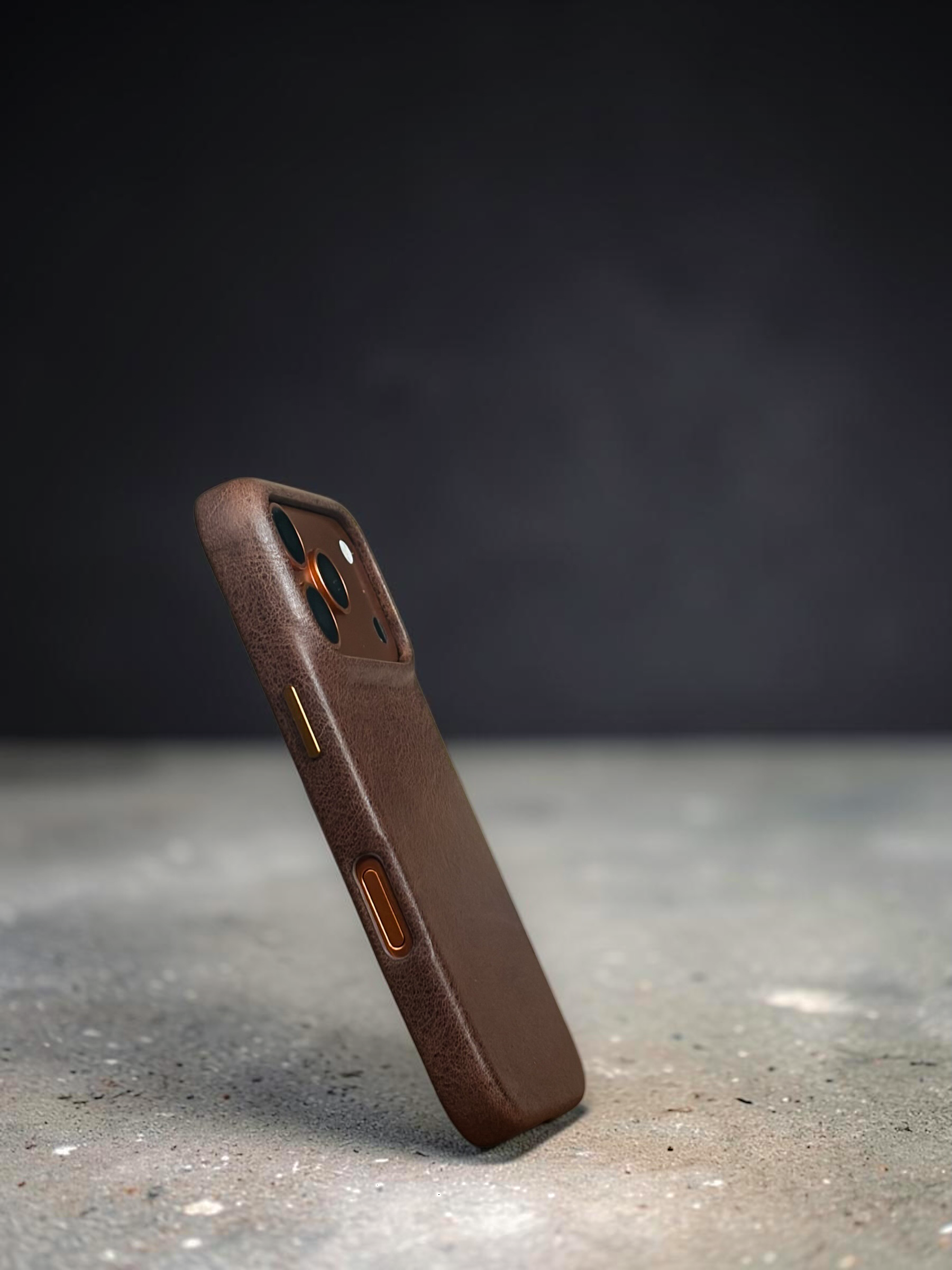
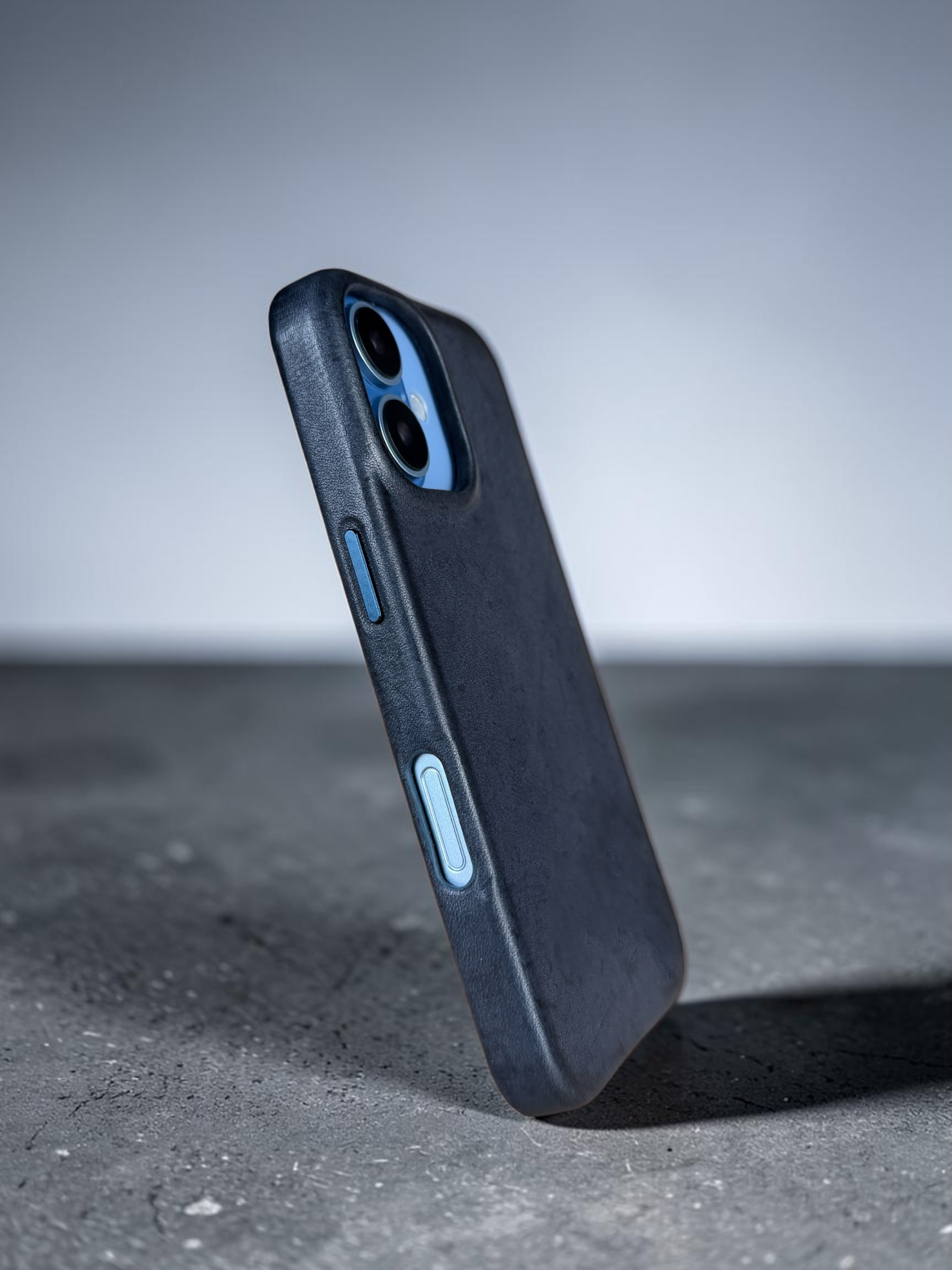
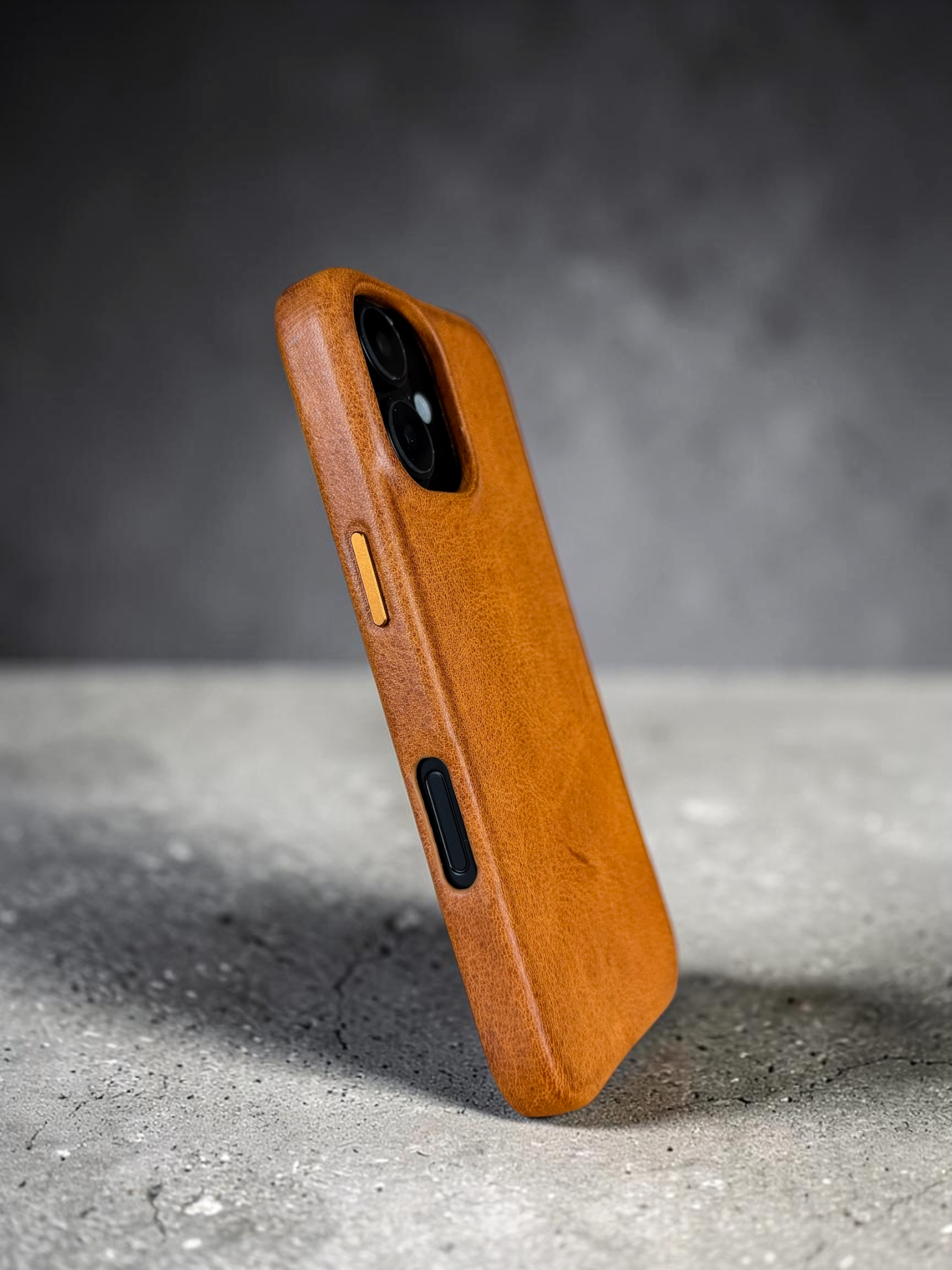
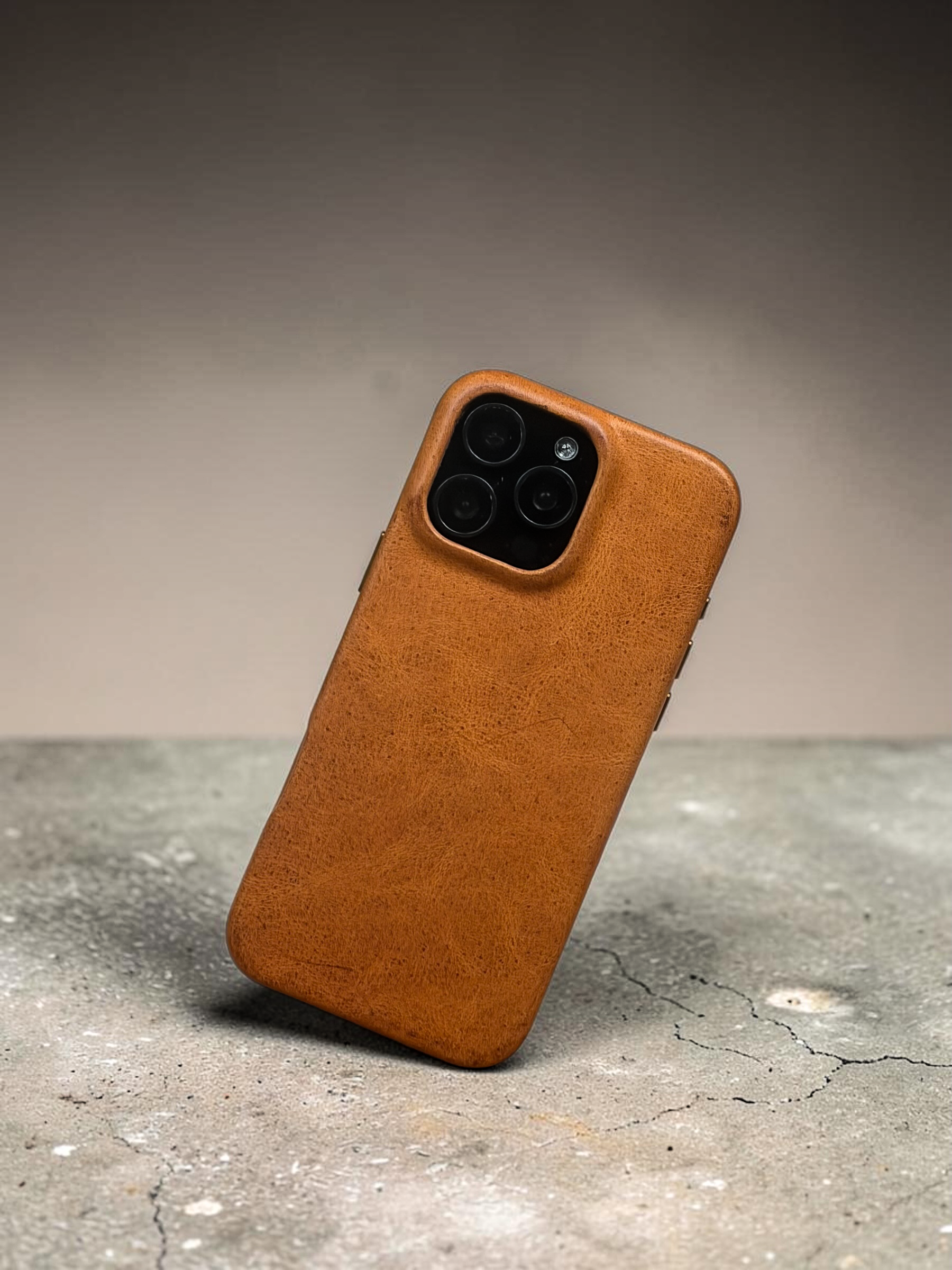
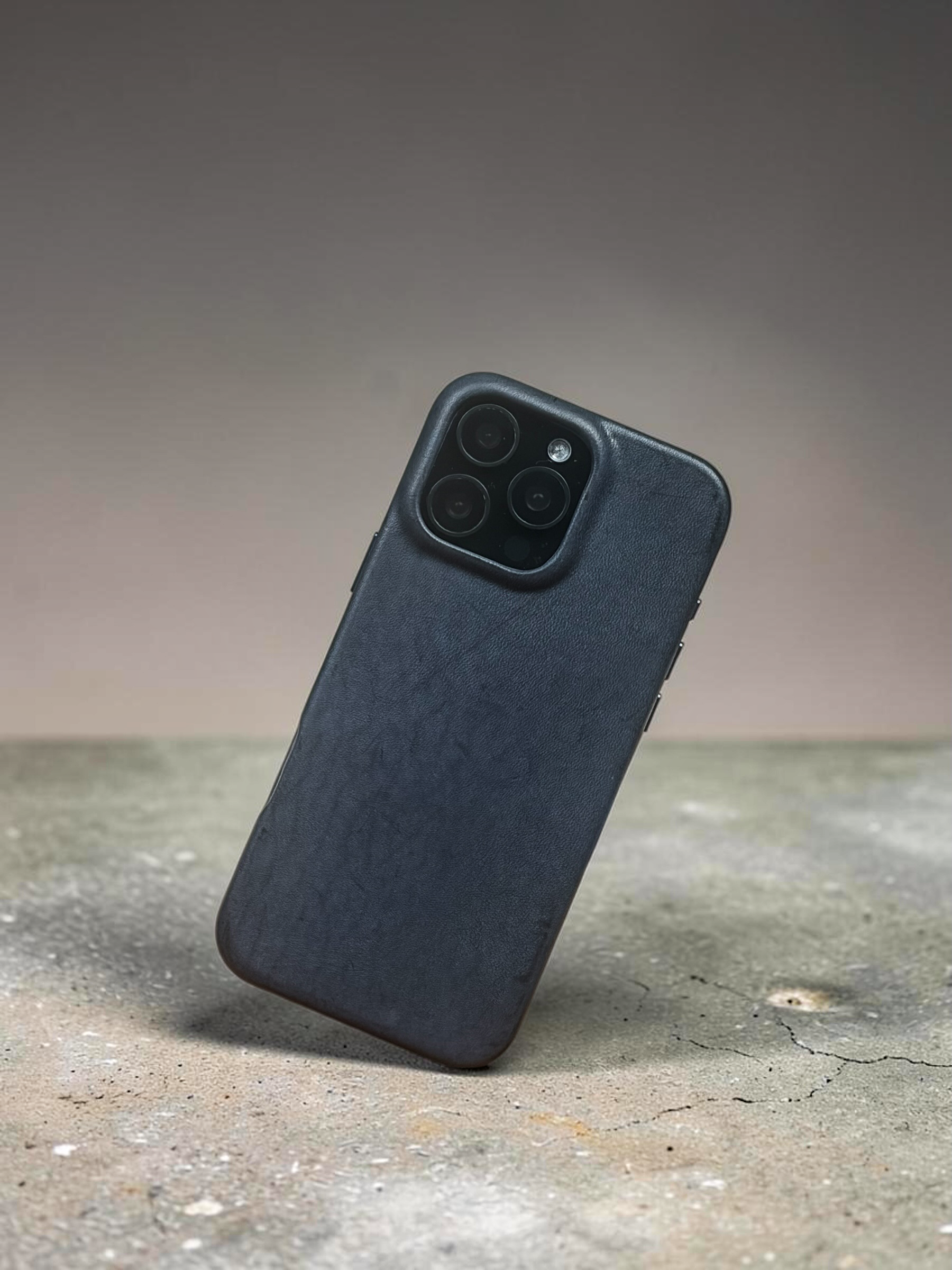
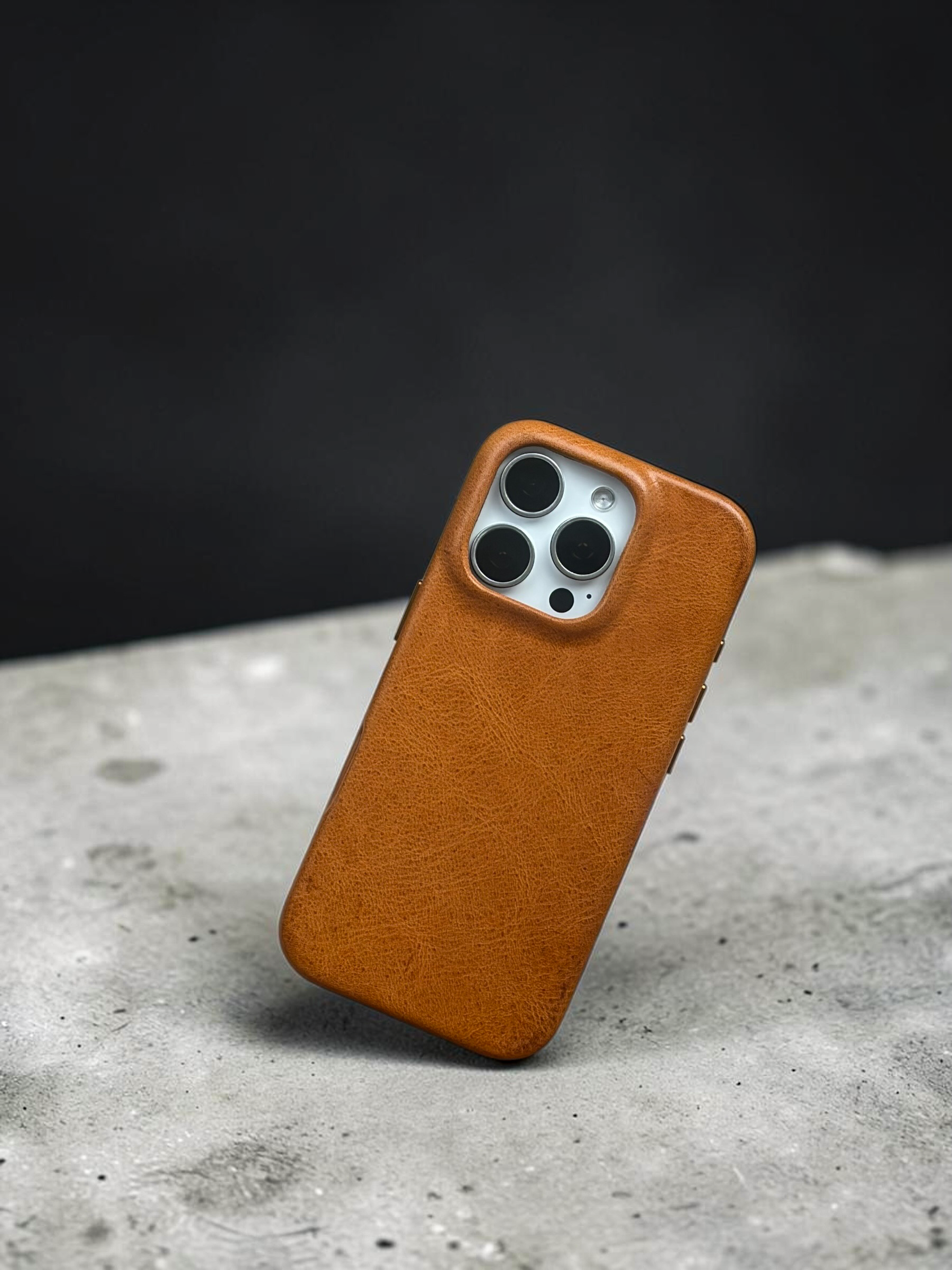
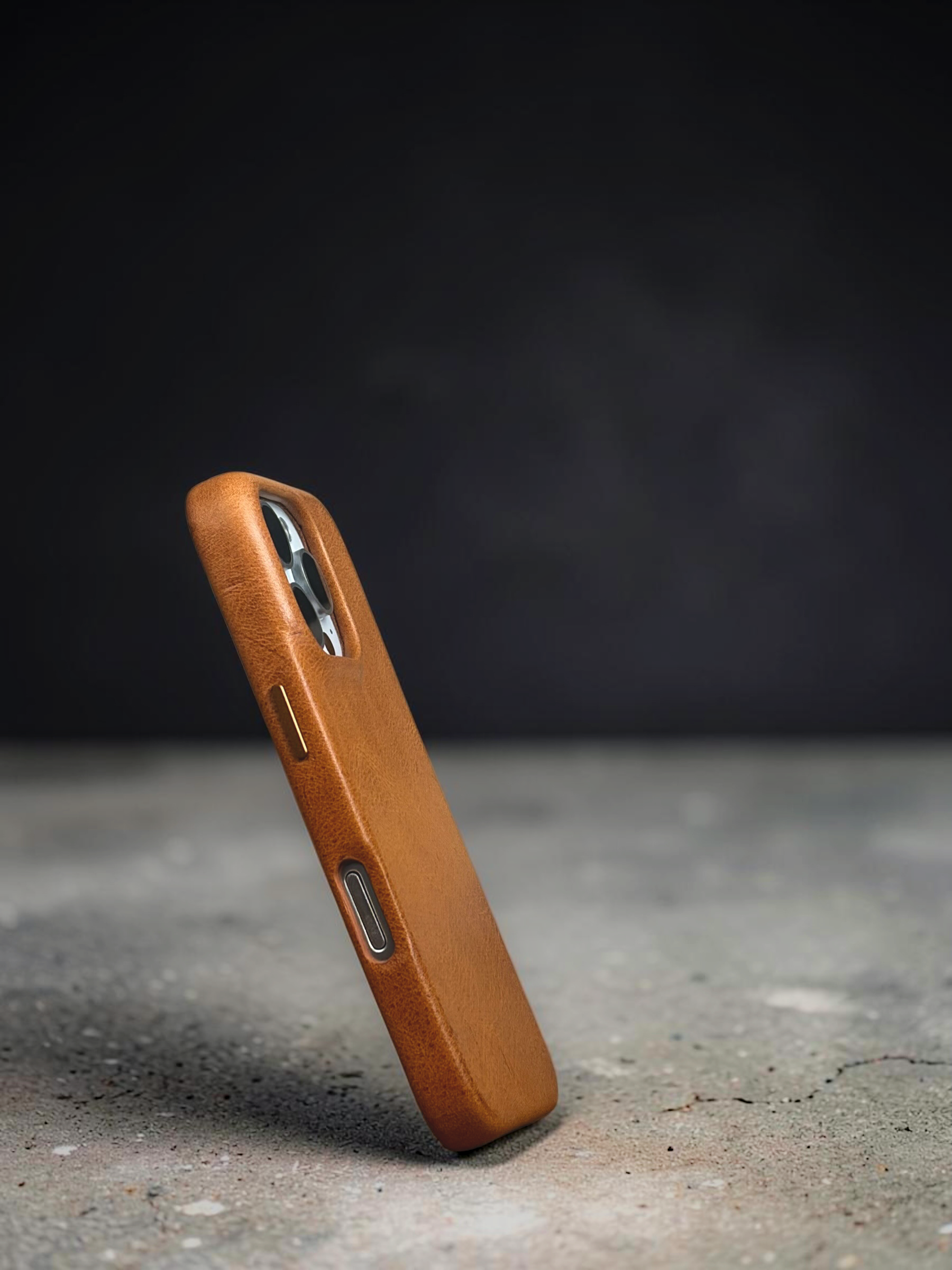
Each phone case is unique with a natural pattern from the hide
iPhone 16 series